
Course:
300_Nuke Tool Terminal_Render 🇬🇧

INSTRUCTIONS:
Download the .zip file.
You will get a .txt file (open it in a text editor and paste it into Nuke).
There is also an .nk script as an example so you can see the paths if you use Linux or Windows.
TOOL:
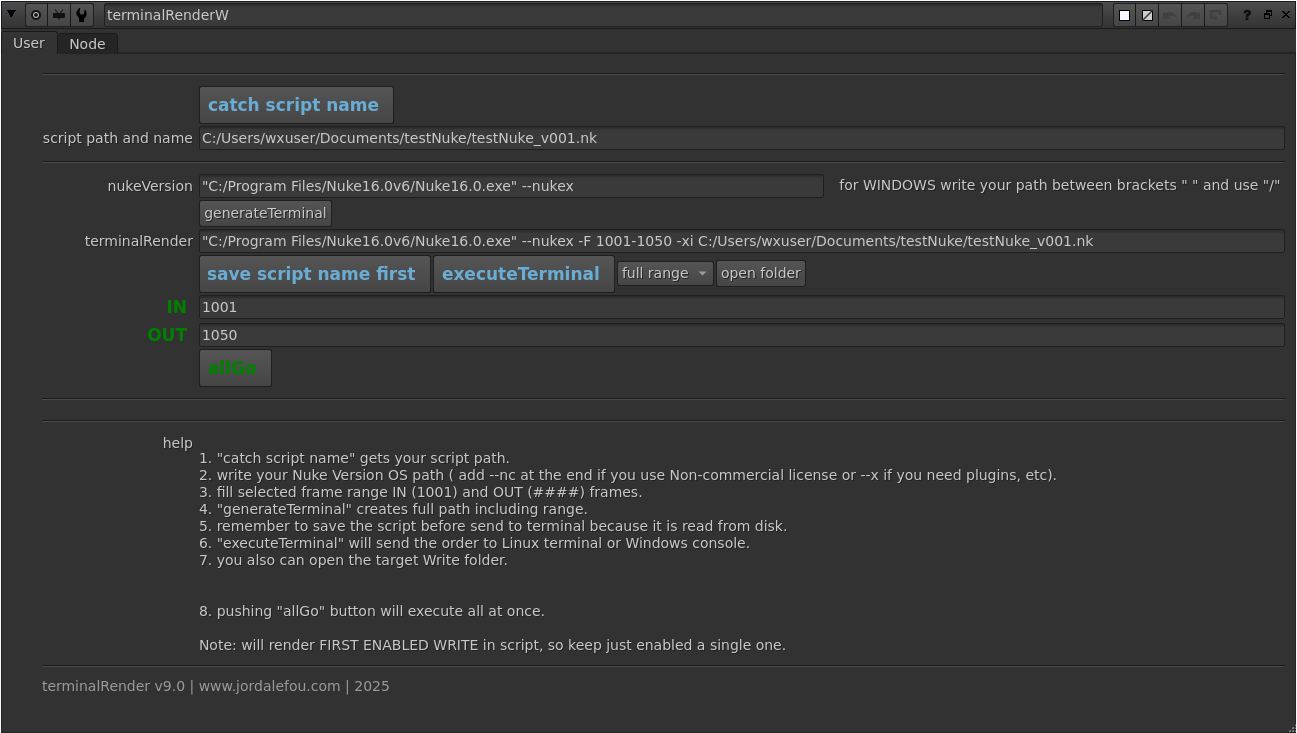
1. “catch script name” gets the path to your script.
2. Enter the path to your version of Nuke OS (add –nc at the end if you are using a non-commercial license or –x if you need plugins, etc.).
3. Fill in the selected frame range IN (1001) and OUT (####).
4. “generateTerminal” creates the complete path, including the range you have entered.
5. Remember to save the script before sending it to the terminal, as it is read from the local disk.
6. “executeTerminal” will send the command to the Linux terminal or Windows console.
7. You can also open the destination Write folder with the “open folder” button
8. Pressing the “allGo” button will execute everything at once. The save confirmation is to ensure that you are rendering the latest changes you have made to the script.
Note: it will render the FIRST ENABLED WRITE in the script, so it is best to keep only one enabled.
You can use terminalRender for both personal and commercial use.
If you would like to contribute, please feel free to become a member at http://hurtyworld.com.

